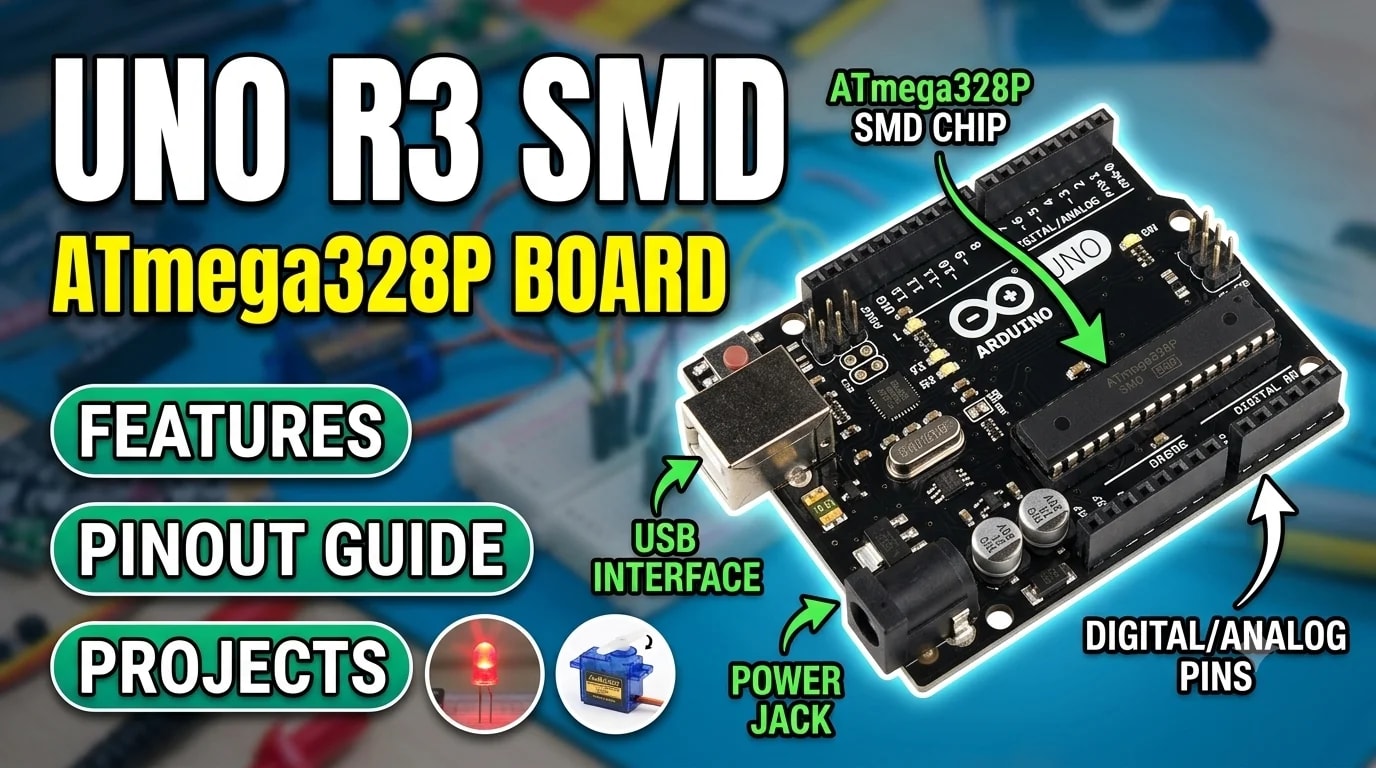
Building your first electronics project becomes much easier when you have a development board that simplifies programming, sensor integration, and hardware control. Whether you are a student learning embedded systems, a hobbyist experimenting with robotics, or a developer building a prototype, the UNO R3 SMD ATmega328P board is a practical starting point.
Based on the popular Arduino UNO R3 layout, this development board combines an ATmega328P microcontroller, digital and analog input/output pins, and a USB programming interface. It can be used to explore programming fundamentals, automate simple tasks, read sensor data, and build a wide range of electronics projects.
If you are looking for an UNO R3 SMD ATmega328P board for electronics projects, here is what you should know about its features, pin configuration, applications, and setup process.
What Is an UNO R3 SMD ATmega328P Board?
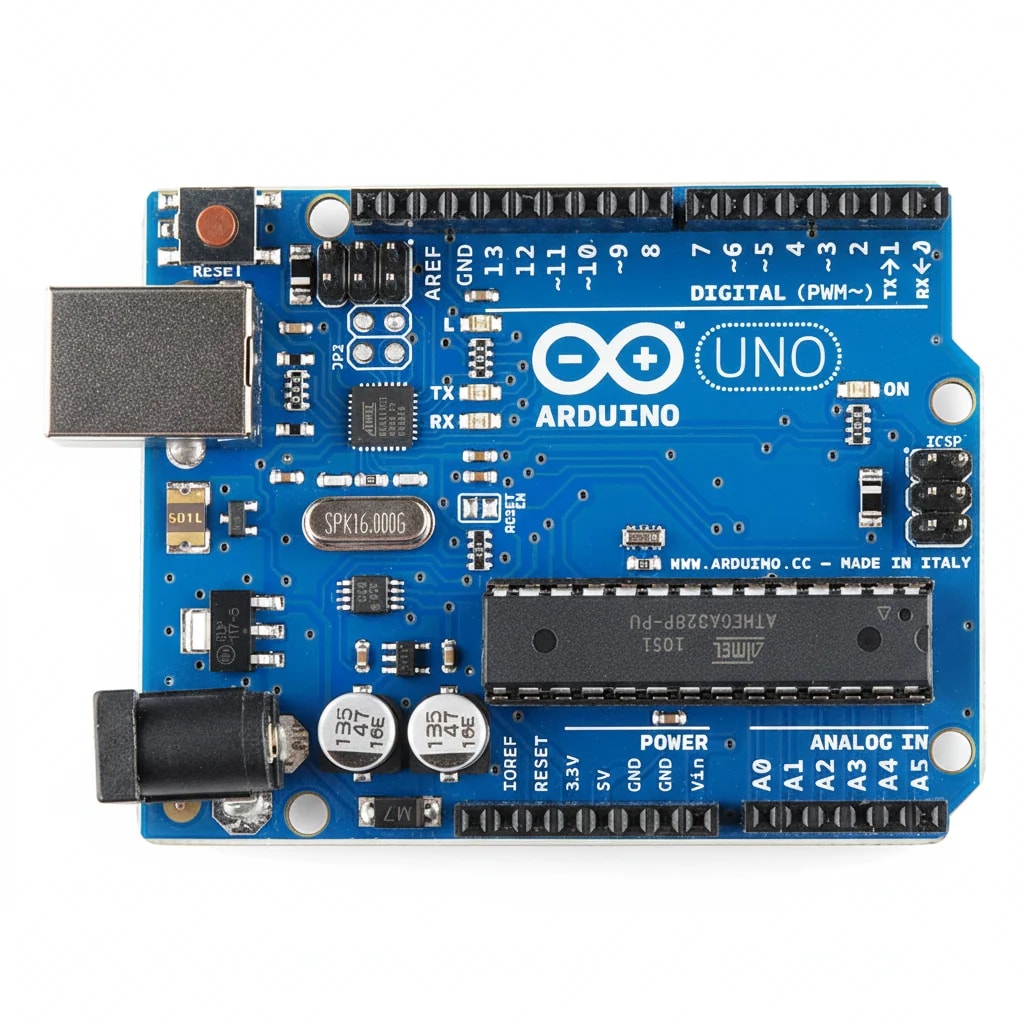
The UNO R3 SMD ATmega328P board is a microcontroller development board designed for learning, experimentation, and prototyping. Its ATmega328P microcontroller executes the program you upload and interacts with external components such as LEDs, switches, sensors, displays, and compatible modules.
The term SMD stands for Surface-Mount Device. In this design, the microcontroller is soldered directly onto the board rather than installed in a removable chip socket.
The board supports Arduino IDE programming and follows the familiar UNO R3 pin layout, making it suitable for many beginner tutorials and compatible electronics components.
You can explore the UNO R3 SMD ATmega328P board available at Componentwala to see its product details and availability.
Key Features of the UNO R3 SMD ATmega328P Board
1. ATmega328P Microcontroller
The ATmega328P is an 8-bit microcontroller that processes instructions and controls connected electronics. On the standard ATmega328P implementation, it provides 32 KB of Flash memory for program storage, 2 KB of SRAM for temporary data, and 1 KB of EEPROM for data that needs to be retained when power is removed.
These resources are suitable for many small embedded projects, including sensor monitoring, LED control, simple automation, and basic robotic systems.
2. 14 Digital Input/Output Pins
The board provides 14 digital input/output pins. These pins can read digital signals from components such as buttons and switches or control digital outputs such as LEDs and compatible driver circuits.
Digital pins are useful for projects that need to detect a simple ON/OFF condition or activate an output based on programmed logic.
3. Six PWM-Capable Pins
Six digital pins support pulse-width modulation (PWM). PWM allows a program to vary the average power delivered to a compatible load by changing the duty cycle of a digital signal.
Common applications include adjusting LED brightness and controlling motor speed through a suitable motor driver.
PWM is not a substitute for a true analog voltage output, and motors or other high-current loads should not be powered directly from the board's I/O pins.
4. Six Analog Input Pins
The six analog inputs, commonly identified as A0 through A5, allow the board to measure varying voltage levels within its supported input range.
They can be used with compatible analog sensors such as potentiometers, light-sensitive circuits, and certain temperature sensors. The microcontroller converts the measured voltage into a digital value that your program can interpret.
5. USB Programming Interface
A USB connection allows you to connect the board to a computer and upload programs through the Arduino IDE.
This makes it convenient to edit code, test new features, troubleshoot projects, and repeat experiments without using a separate external programmer for ordinary development.
Use a suitable USB data cable, as a charge-only cable will not provide the data connection needed for programming.
6. UART, SPI and I2C Communication
The board supports common communication interfaces used in electronics projects:
- UART: Serial communication with compatible devices, modules, or a computer.
- SPI: High-speed communication with supported peripherals such as certain displays and memory modules.
- I2C: Communication with compatible sensors and peripherals using a shared two-wire bus.
These interfaces allow one microcontroller board to work with a variety of external devices.
7. Compatibility With Arduino IDE and Modules
The board is designed for Arduino IDE programming and is compatible with many components and modules that follow the UNO R3 pin layout.
This makes it a useful option for following tutorials, testing circuit ideas, and developing prototypes. However, check voltage requirements, pin assignments, library support, and physical compatibility before connecting a particular shield or module.
UNO R3 SMD ATmega328P Board Specifications
Specification | Details |
|---|---|
Microcontroller | ATmega328P |
Board layout | UNO R3 compatible |
Digital I/O pins | 14 |
PWM-capable pins | 6 |
Analog input pins | 6 |
Clock speed | 16 MHz |
Serial communication | UART |
Other communication interfaces | SPI and I2C |
Programming environment | Arduino IDE |
Main connection | USB programming interface |
Microcontroller package | Surface-mount device (SMD) |
These specifications describe the board as presented in the Componentwala listing and the standard ATmega328P-based UNO R3 design. Confirm any additional electrical or power-supply requirements against the exact board you receive before connecting external hardware.
Understanding the Board's Pin Configuration
Understanding the pin layout helps you connect components correctly and write programs that interact with them.
Digital Pins: D0–D13
Digital pins can be configured as inputs or outputs. They are commonly used for push buttons, LEDs, relays controlled through suitable driver circuits, and digital sensors.
Pins D0 and D1 are also associated with serial communication, so using them for other components can interfere with uploading programs or communicating with the computer.
PWM Pins
The standard UNO R3 layout provides PWM on pins D3, D5, D6, D9, D10, and D11. These pins are useful when a project needs variable LED brightness or a PWM control signal for compatible hardware.
Analog Pins: A0–A5
Analog inputs read varying voltage levels from compatible sensors. For example, a potentiometer can act as a simple input control, while an analog light-sensing circuit can provide readings that change with the brightness of the surroundings.
On the standard UNO R3 layout, A4 and A5 are also used for I2C communication.
Power and Ground Connections
The board includes power connections that help supply supported components and modules. Check the exact board's voltage specifications and the requirements of every connected device before applying power.
Avoid connecting a load that draws more current than the board's pins or power circuitry can safely handle. Motors, relays, and other higher-current components generally require suitable driver circuits and an appropriate power source.
For detailed pin information, consult the official Arduino UNO R3 SMD documentation.
What Can You Build With an UNO R3 SMD ATmega328P Board?
One of the main advantages of this board is that you can start with simple programs and gradually move toward more advanced prototypes.
1. LED Blinking Project
An LED blinking project is an excellent first experiment. Upload a short program that switches an LED on and off at a fixed interval to understand digital outputs, program structure, and timing.
The board's built-in LED can be used for the standard Blink example, so additional components may not be necessary for this first test.
2. Temperature Monitoring System
Connect a compatible temperature sensor and write a program that reads its output. You can display the readings in the Arduino IDE Serial Monitor or send them to a compatible display module.
This project introduces sensor interfacing, analog or digital readings, and serial debugging.
3. Automatic Lighting Prototype
Combine a compatible light sensor with the board to detect changes in ambient brightness. Your program can then switch an indicator LED or control a suitable lighting circuit through an appropriate driver.
This is a useful introduction to threshold-based automation.
4. Obstacle-Avoiding Robot
The board can process distance readings from a compatible sensor and control a robot's movement through a suitable motor driver.
The program reads sensor data, applies basic decision-making logic, and commands the motors to move or turn when an obstacle is detected.
Remember that the motors require appropriate power and driver hardware rather than direct connections to the microcontroller's I/O pins.
5. Home Automation Prototype
Build a small demonstration system that reads switches or sensors and controls compatible outputs. For example, the board can respond to a button press or a sensor reading by activating an indicator or a properly rated driver circuit.
For mains-powered equipment, use appropriate isolation, enclosure, and electrical protection. A beginner prototype should not expose live mains wiring.
6. Sensor Data Logger
Read measurements from a compatible sensor and transmit the values to a computer over serial communication. You can record the readings in software and analyse how they change over time.
This type of project is useful for learning data collection, serial communication, and basic embedded-system debugging.
How to Get Started With the UNO R3 SMD Board
If this is your first microcontroller project, follow these steps to upload a basic program.
Step 1: Get the required components
You will need the UNO R3 SMD ATmega328P board, a compatible USB data cable, and a computer. Additional components are optional for your first test.
Check the Componentwala product page for the listed package contents. The listing identifies the development board as the included item, so check whether you need to purchase the cable separately.
Step 2: Install the Arduino IDE
Download and install the Arduino IDE from the official Arduino software website.
The IDE lets you write programs, check code for errors, and upload sketches to a supported board.
Step 3: Connect the board
Connect the board to your computer using a suitable USB data cable. Open the Arduino IDE and check whether a serial port appears.
If the port is missing, try another data-capable cable or USB port and check whether the board requires an appropriate USB-interface driver.
Step 4: Select the board and port
Choose the appropriate UNO board option and the port associated with your connected device. The exact menu options may vary slightly by IDE version.
For more guidance, follow Arduino's official sketch-upload tutorial.
Step 5: Upload the Blink example
Open the IDE's built-in Blink example. Verify the program, then upload it to the board.
After a successful upload, the built-in LED should blink at the programmed interval. This simple test confirms that the basic programming workflow is functioning.
You can find the example and its explanation in the Arduino Blink tutorial.
Step 6: Expand your project
Once you have successfully uploaded Blink, try reading a push button, monitoring an analog sensor, or controlling an LED's brightness. Add one component at a time so you can identify wiring or programming issues more easily.
Who Should Choose This Development Board?
The UNO R3 SMD ATmega328P board can be a suitable choice for:
- Students: Learning microcontrollers, programming fundamentals, and circuit connections.
- Beginners: Building their first Arduino-compatible electronics projects.
- Hobbyists: Testing sensors, displays, switches, and control circuits.
- Robotics enthusiasts: Developing basic robot-control logic with suitable motor drivers.
- Prototype developers: Testing embedded-system concepts before designing a dedicated circuit.
It is especially useful when a project benefits from the familiar UNO R3 layout and does not require a more powerful microcontroller or built-in wireless connectivity.
UNO R3 SMD vs. a Removable-Chip Board
When comparing SMD and socketed versions of UNO-compatible development boards, one important difference is how the microcontroller is mounted.
On an SMD board, the microcontroller is soldered directly onto the circuit board. This is a compact, integrated design, but the chip is not intended to be removed and replaced like a socketed DIP microcontroller.
If your project requires swapping microcontrollers frequently or replacing the chip without soldering, compare the physical design of the available boards before purchasing.
For ordinary programming, sensor experiments, and prototyping, the more important considerations are often pin compatibility, programming support, electrical requirements, and the components your project needs.
Things to Check Before Buying
Before choosing an UNO R3 SMD ATmega328P board, consider a few practical points:
- Project requirements: Make sure the available pins and processing resources are enough for your application.
- Module compatibility: Confirm that sensors and other modules support the board's electrical levels and communication interfaces.
- Power requirements: Check the recommended input voltage and the current requirements of your connected components.
- USB connectivity: Make sure you have a suitable data cable for uploading programs.
- Expansion needs: Check the layout and compatibility of any shield or accessory you intend to use.
A little planning before connecting the hardware can help prevent wiring problems and avoid damage to the board or peripheral devices.
Frequently Asked Questions
What is the UNO R3 SMD ATmega328P board used for?
It is used for learning electronics and programming, reading sensor data, controlling digital outputs, prototyping robotics systems, testing modules, and building simple automation projects.
Can beginners use the UNO R3 SMD board?
Yes. Its Arduino IDE programming workflow and familiar UNO R3 pin layout make it suitable for beginners who want to learn through practical projects.
Is the UNO R3 SMD board compatible with Arduino IDE?
The Componentwala listing specifies Arduino IDE compatibility. Select the appropriate board and serial port in the IDE, then check that your program uploads successfully.
What is the difference between SMD and DIP versions?
An SMD microcontroller is soldered directly onto the board, whereas a DIP microcontroller on a socketed board can generally be removed and replaced more easily.
Does the UNO R3 SMD board have built-in Wi-Fi or Bluetooth?
The product listing does not specify built-in Wi-Fi or Bluetooth. For wireless projects, check compatible external modules or consider a development board designed with wireless connectivity.
Can this board control motors?
It can provide control signals for compatible motor-driver circuits. Motors should not be powered directly from the board's I/O pins; select a driver and power source appropriate for the motor.
Final Thoughts
The UNO R3 SMD ATmega328P board provides a straightforward way to explore microcontroller programming, sensor interfacing, robotics, and simple automation. Its 14 digital I/O pins, six analog inputs, PWM support, and familiar UNO R3 layout make it a useful starting point for many learning and prototyping projects.
Whether you want to blink your first LED, read a sensor, or develop a basic robot, start with a small experiment and build up your project one step at a time.
Looking for an UNO R3 SMD ATmega328P development board for your next project?
Explore the UNO R3 SMD ATmega328P board at Componentwala and get started with your next electronics project.
Related products
Components that pair well with this guide.